
How to Use QuickBooks for UAE E-Invoicing with Tax Star
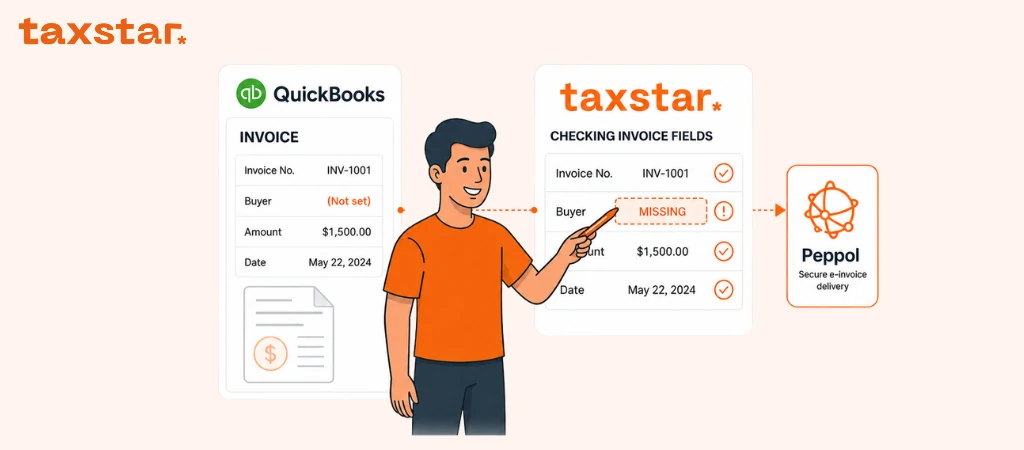
If your finance team already uses QuickBooks Online, replacing the whole accounting setup probably sounds unnecessary.
And it is.
Your team can keep creating invoices, managing customers, recording payments, and maintaining its accounts in QuickBooks. Tax Star connects those invoice records to the UAE e-invoicing steps that come next.
So, QuickBooks does not disappear from the process. It stays where your team already uses it.
The difference is what happens after an invoice is created.
What QuickBooks continues to handle
QuickBooks Online remains the starting point for your finance work.
Your team can use it to:
- create customer invoices
- select products and services
- apply VAT codes
- record discounts
- set payment terms
- issue credit notes
- track customer balances
- maintain accounting records
That part should feel familiar.
The invoice is created in QuickBooks in much the same way it is today. Your team does not need to type the same invoice into Tax Star from scratch.
For more details, visit the QuickBooks e-invoicing UAE integration page.
What changes for UAE e-invoicing?
A QuickBooks invoice is usually created for three main reasons: to bill the customer, record the sale, and calculate the accounting and VAT entries.
UAE e-invoicing adds another layer.
The invoice data needs to follow the PINT-AE structure, move through the Peppol framework, reach the buyer through the appointed service providers, and support tax-data reporting to the FTA.
A PDF alone cannot handle that job. It is a document people can read, but it is not the structured XML e-invoice exchanged under the UAE system.
This is the gap Tax Star fills.
Tax Star receives the QuickBooks invoice record, reviews the required information, prepares it for the UAE format, manages the exchange process, and returns the invoice status to the finance team.
How does QuickBooks connect to UAE e-invoicing?
The process can be broken into five practical steps.
1. Your team creates the invoice in QuickBooks
The normal invoice starts in QuickBooks Online.
The user selects the customer, adds the products or services, applies the tax treatment, checks the total, and saves the invoice.
No second invoice needs to be created in Tax Star.
2. The invoice record moves into Tax Star
Tax Star connects with QuickBooks and receives the invoice information.
That includes the seller, buyer, tax, payment, total, and invoice-line data available in the QuickBooks record.
At this point, the invoice may look complete. That does not always mean every field needed for UAE e-invoicing is present.
3. Missing or incorrect data is found
Tax Star reviews the invoice before it is transmitted.
The system can flag gaps such as missing buyer details, TRNs, addresses, item information, or other fields needed for the UAE structure. The finance team can then correct the source information before resubmitting the record.
This step matters.
Finding a problem before transmission is far easier than trying to trace it after several invoices have failed.
4. The data is prepared and exchanged
Once the record is ready, it is mapped to PINT-AE and prepared as structured e-invoice data.
The invoice can then move through the UAE Peppol framework. Under the five-corner model, the supplier sends invoice data to its service provider, which validates the record and sends the structured invoice to the buyer’s service provider. Tax data is reported to the FTA as part of the process.
Your team does not need to build or read the XML file manually.
The key task for finance is making sure the source data in QuickBooks is correct.
5. The status comes back to the team
Once the invoice moves through the process, Tax Star shows its progress.
The finance team can see whether the record is accepted, rejected, or pending. A failed record can be reviewed, corrected, and sent again.
That gives the team a clearer answer than simply emailing a PDF and waiting for the customer to respond.
What should you check inside QuickBooks first?
This is where most of the preparation sits.
The technical connection matters, but poor source data will still create problems. A clean connection cannot fix an invoice record that contains the wrong customer, an unclear tax treatment, or missing legal details.
Start with four areas.
1. Check your company profile
Open the company record in QuickBooks and compare it with the business’s official documents.
Look closely at:
- legal business name
- trade licence details
- TRN and TIN
- full address
- city and Emirate
- country code
A shortened trading name may work on a normal customer invoice. The e-invoice data needs to identify the legal seller correctly.
The UAE mandatory-field guide covers the seller name, registration details, tax identifier, electronic address, city, country subdivision, and country code.
One incorrect seller field can affect every invoice created from that QuickBooks company.
Fix the company profile before testing begins.
2. Clean up your customer records
Customer data is often the part that takes the longest.
Some profiles may have been created years ago. Others may contain a contact name rather than the legal company name. You may find several branches grouped under one customer account.
Watch for:
- TRNs stored inside notes
- missing buyer electronic addresses
- informal or shortened company names
- old billing addresses
- missing city or Emirate
- missing country codes
- duplicate profiles
- one profile used for several legal entities
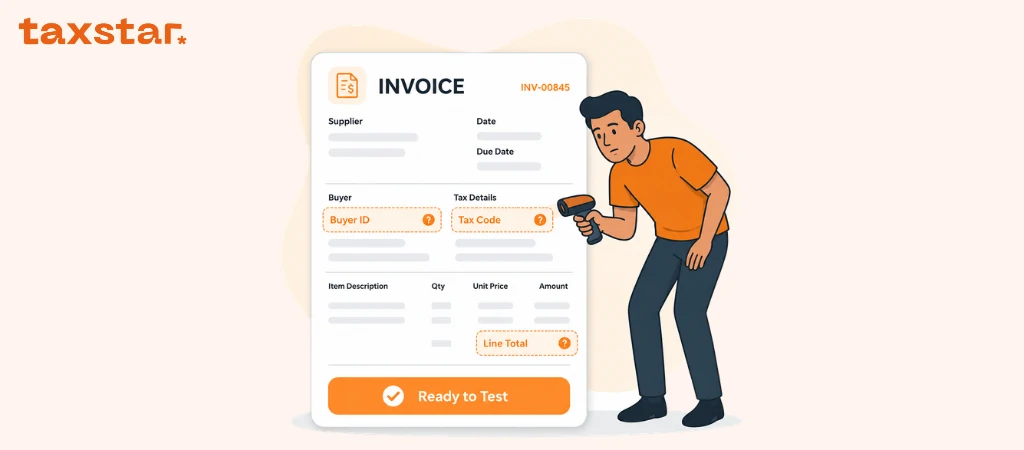
The buyer details required for a structured e-invoice can include the legal name, electronic address, identifier, tax identifier where relevant, address, city, country subdivision, and country code.
Not every buyer will need the same tax information. The fields depend on the customer and transaction.
The goal is to give each legal buyer a clear, accurate record.
3. Review products, services, and invoice lines
Next, check the items your team selects when creating invoices.
Pay particular attention to:
- item name and description
- quantity and unit of measure
- unit price
- discounts
- net line amount
- tax category
- tax rate
- VAT line amount in AED
A vague item called “services” may have worked for years. It gives very little detail when the structured record is reviewed or mapped.
The UAE mandatory-field list includes invoice-line descriptions, quantities, units, prices, tax treatments, and line amounts.
Look at discounts too.
Is the discount linked to one item, or the invoice as a whole? Is the reason recorded consistently? Does every user follow the same method?
These small differences can affect how the invoice data is mapped.
4. Map your QuickBooks tax codes
QuickBooks tax codes were created for accounting and VAT work.
PINT-AE uses set tax categories and transaction flags. Each QuickBooks code needs a clear match in the e-invoicing setup.
A zero-rated transaction and an outside-scope transaction may both show no VAT charged. They are still different tax treatments.
Other cases may include:
- standard-rated supplies
- exempt supplies
- reverse-charge transactions
- margin scheme transactions
- free zone cases
- exports
- deemed supplies
- continuous supplies
Do not rely on the tax percentage alone.
List every tax code your team uses in QuickBooks. Then agree how each one should move into the PINT-AE structure.
How should e-credit notes work?
Invoices are only half of the process.
Your team needs a clear route for e-credit notes too.
Review how credit notes are created in QuickBooks today. Check whether the record shows:
- its own reference number
- the issue date
- the earlier invoice reference
- the reason for the change
- adjusted lines
- updated VAT values
- the revised balance
Tax Star supports electronic credit-note processing using the UAE e-invoicing structure.
The setup should agree how each QuickBooks credit note moves into Tax Star and links back to the earlier invoice where required.
Do this during the first setup phase. Leaving credit notes until after invoice testing usually creates more work.
Can one Tax Star account handle several QuickBooks companies?
Yes. Tax Star supports e-invoicing management across several entities from one account. This can help groups and accounting firms that manage more than one QuickBooks company.
Each legal entity still needs its own correct company, tax, customer, and invoice information.
So, review the setup company by company.
A clean record in one QuickBooks account does not mean the other entities are ready.
What should you test before going live?
Do not test one perfect invoice and stop there.
Use records that reflect the work your team handles every month.
A useful test set could include:
- a standard UAE tax invoice
- an e-credit note
- a foreign-currency invoice
- an invoice with a line discount
- an invoice with a document-level discount
- a customer with missing buyer data
- an invoice with more than one tax treatment
- an invoice issued to a government entity
- a failed invoice followed by a correction
- an invoice from each UAE company in the group
The Ministry’s guidance asks businesses to test the transmission of invoice data to the ASP, the exchange process, and the confirmation messages returned to the business.
Pay attention to failed tests.
A successful invoice tells you that one record worked. A failed invoice shows whether the team knows how to find the issue, correct it, and send the record again.
That is the test that prepares people for day-to-day work.
What should QuickBooks users do now?
Start with a sample of recent invoices and credit notes.
Then work through these steps:
- Compare the QuickBooks company profile with official records.
- Review customer legal names and billing addresses.
- Find TRNs saved in notes or free-text fields.
- Check buyer electronic addresses where applicable.
- List every tax code currently used.
- Review products, services, and item descriptions.
- Check foreign-currency and discount treatments.
- Review how credit notes link to earlier invoices.
- Confirm which QuickBooks companies need to connect.
- Assign an owner for correcting source data.
For businesses with annual revenue of AED 50 million or more, the current ASP appointment deadline is 30 October 2026, with mandatory implementation starting on 1 January 2027.
That may sound like plenty of time.
Data clean-up, mapping, connection work, testing, and user preparation can take longer than expected. Starting with the QuickBooks records now gives the team a far better position before go-live, and helps you avoid UAE e-invoicing penalties for missing the deadline.
For more details, visit the UAE e-invoicing hub.
Need help using QuickBooks Online for UAE e-invoicing? Speak to Tax Star about your current invoice process, QuickBooks data, PINT-AE setup, testing, and go-live plan. Book a free demo.
FAQs
Can we continue using QuickBooks for UAE e-invoicing?
Yes. QuickBooks Online can remain the system used to create invoices and maintain accounting records. Tax Star connects those records with the UAE e-invoicing process.
Does QuickBooks Online handle UAE e-invoicing by itself?
QuickBooks Online does not currently cover the complete UAE process on its own. Tax Star handles the work needed after invoice creation, including preparation for PINT-AE and exchange through Peppol.
Is a QuickBooks PDF a UAE e-invoice?
No. A PDF is a readable document, but a UAE e-invoice uses structured XML data that systems can process and exchange.
Does the team need to create the invoice twice?
No. The invoice starts in QuickBooks, and its record moves into Tax Star through the connection. This reduces repeated manual entry.
Which QuickBooks fields should we check first?
Start with the seller’s legal details, buyer records, TRNs, TINs, electronic addresses where applicable, tax codes, invoice lines, payment terms, and totals.
Can Tax Star handle QuickBooks credit notes?
Yes. Tax Star’s QuickBooks integration supports electronic credit-note processing under the UAE structure.
Can we manage several UAE entities?
Tax Star supports records for several entities from one account, which can suit groups and accounting teams working across multiple QuickBooks companies.
When should we start testing?
Start once the main company, customer, item, and tax-code records have been reviewed. Testing should cover real invoice cases, failed records, corrections, and the confirmation messages returned after exchange

.webp)
.webp)